Setting Up Rules in the Quote
In this step, we will configure discount rules in the Quote based on the data collected in the form. The salesperson selects the discount type, and this information is passed to the Quote, ensuring the correct discount is applied automatically.
Step 1: Adding the Discount Column to the Quote
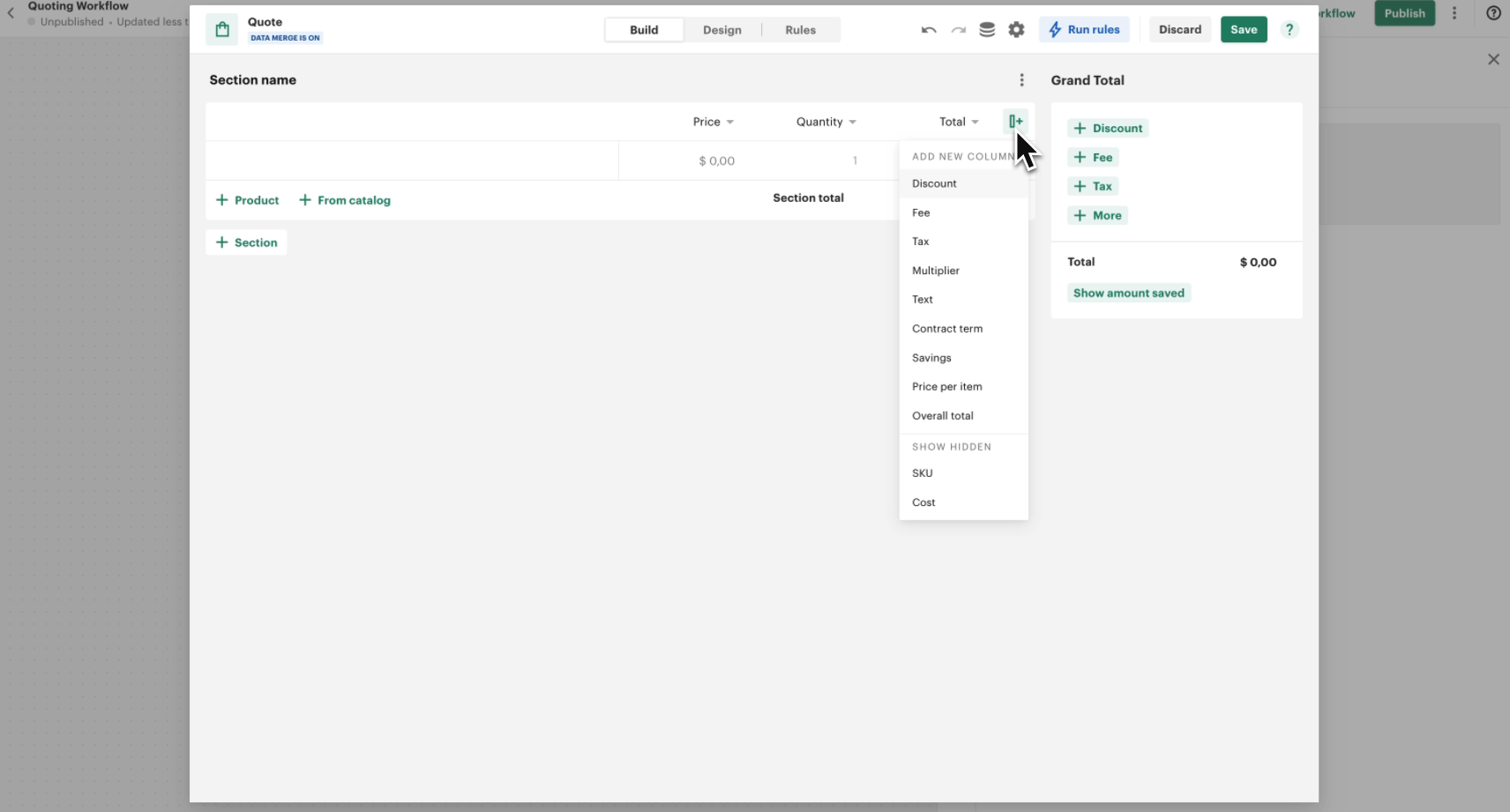
To display discounts in the Quote, we need to add a Discount column.
- Open the Quote editor.
- Click on + Add Column.
- Select Discount from the available options.
Step 2: Creating a Quote Data Field
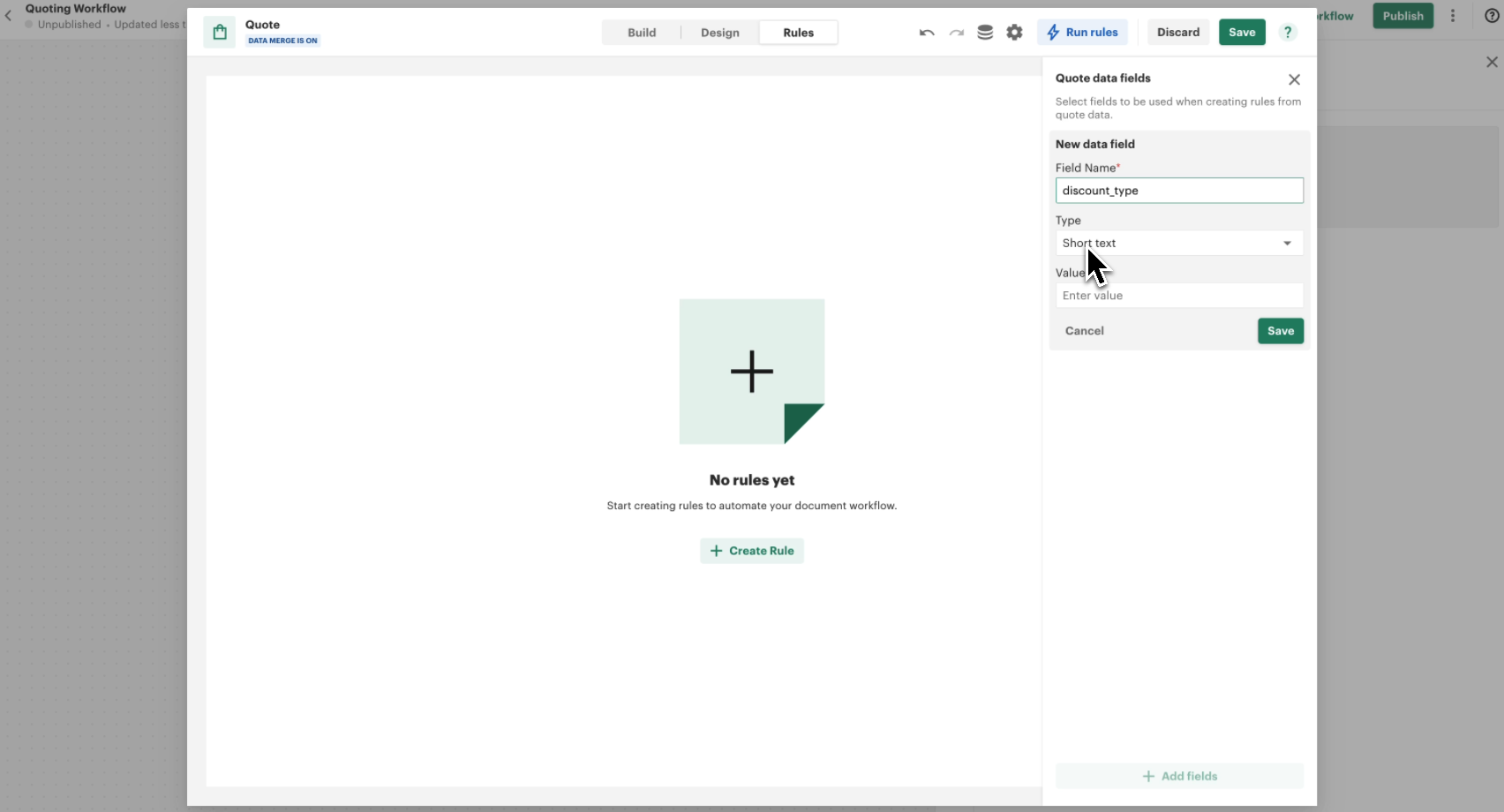
Next, we need to store the discount type selected in the form.
- Open the Quote Data Fields section.
- Click + Add Field.
- Name the field Discount Type.
- Set the type to Short Text.
- Save the field.
Step 3: Creating a Rule
Now, let's create the first discount rule.
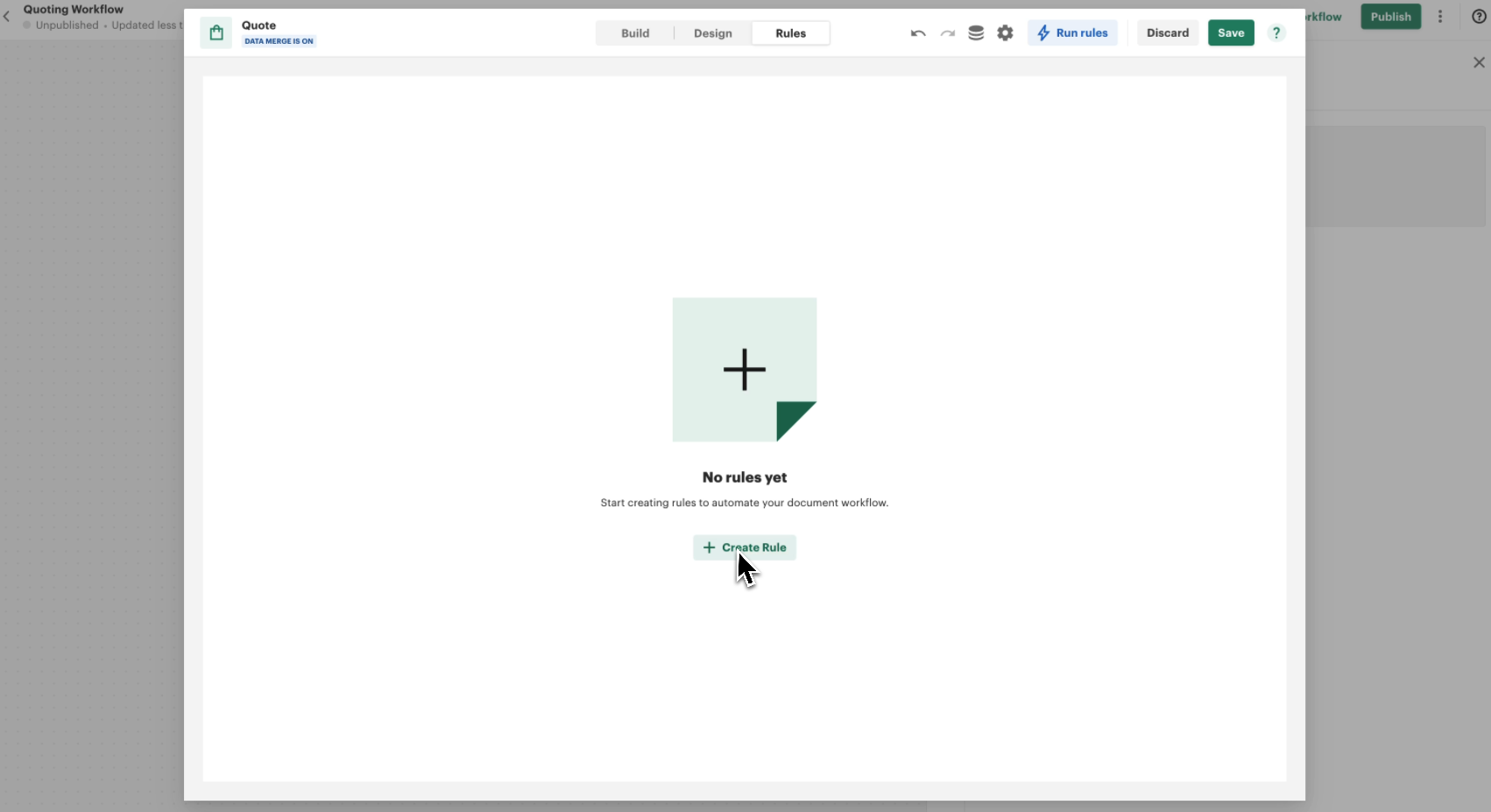
- Navigate to the Rules section of the Quote.
- Click + Create Rule.
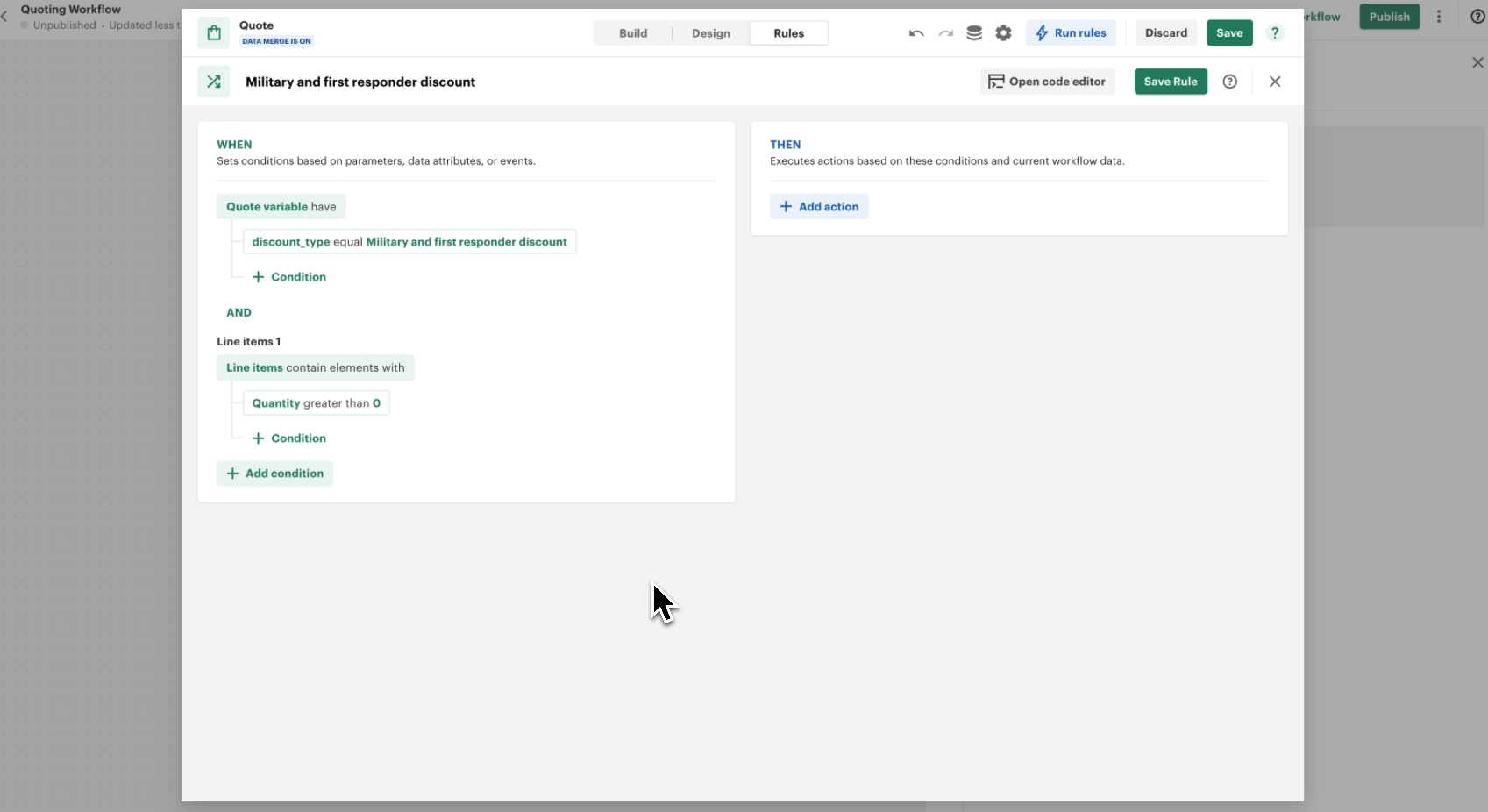
- Rename the rule to Military and First Responder Discount.
Define the Conditions
-
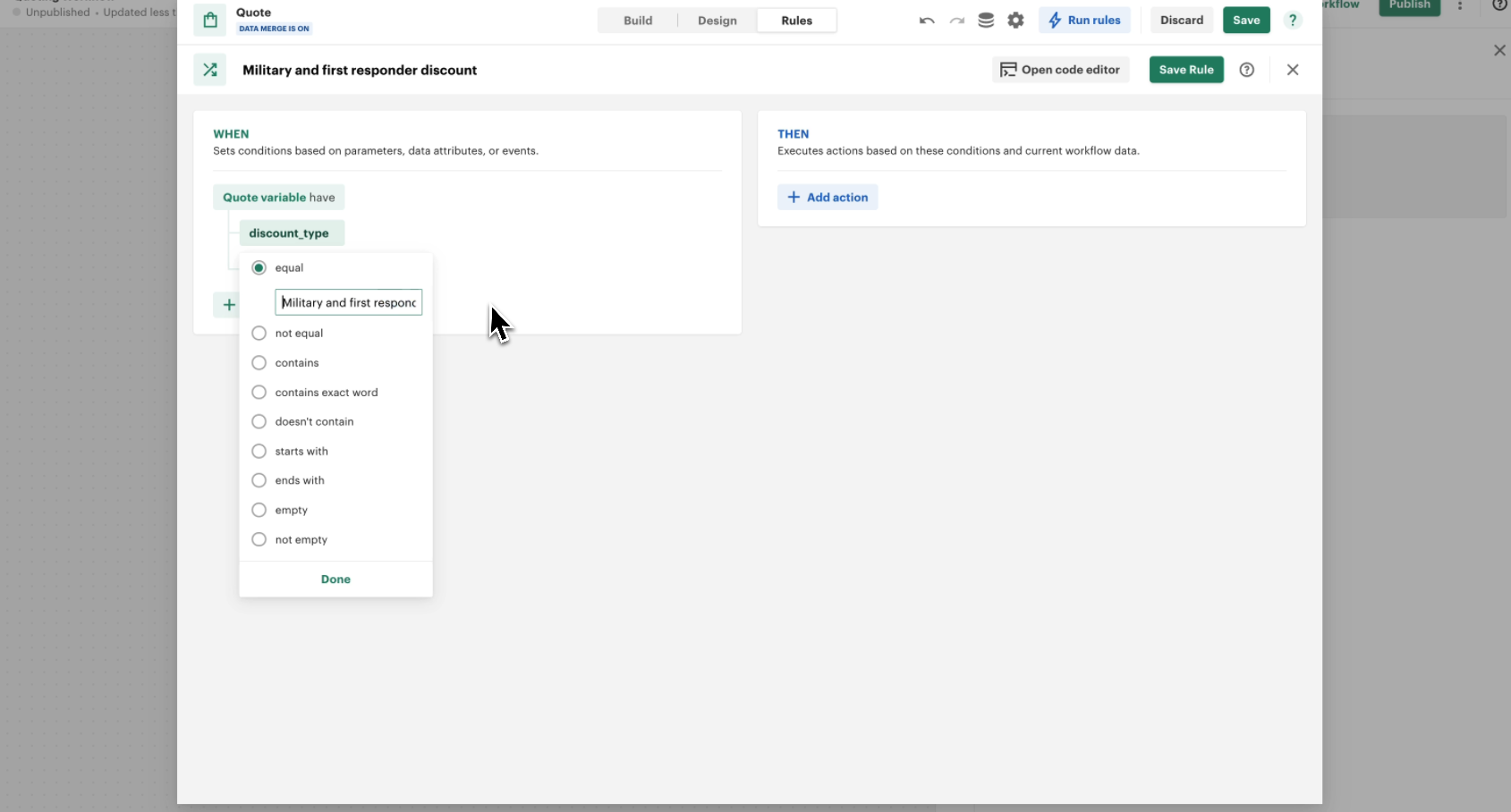
Select Line Items where Quantity > 0.
-
Check if the Discount Type equals Military and First Responder Discount.
Define the Action
- Set a 10% discount on all qualifying line items.
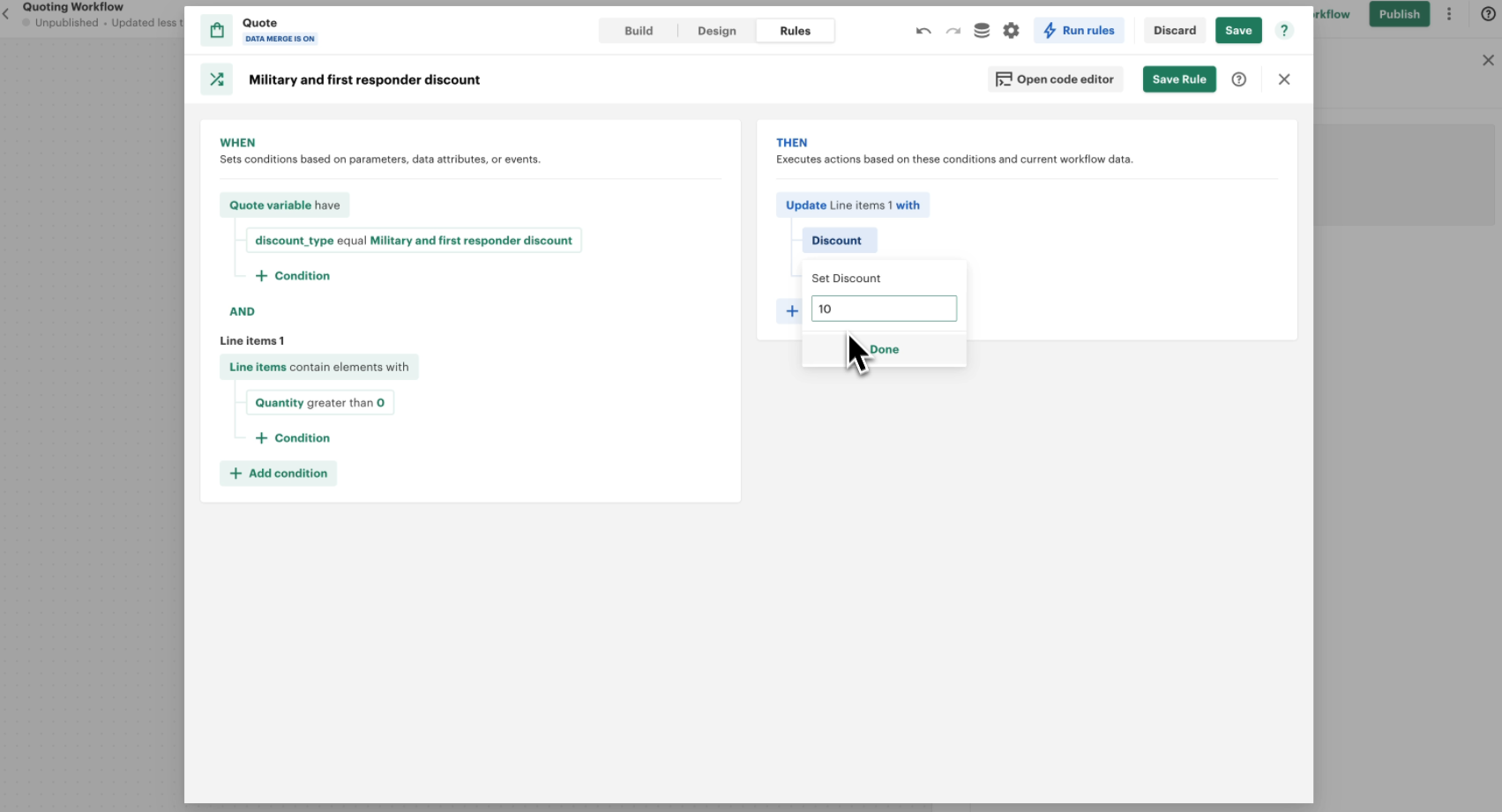
- Save the rule.
Step 4: Testing the Discount Rule
To test the rule:
- Add a product to the Quote.
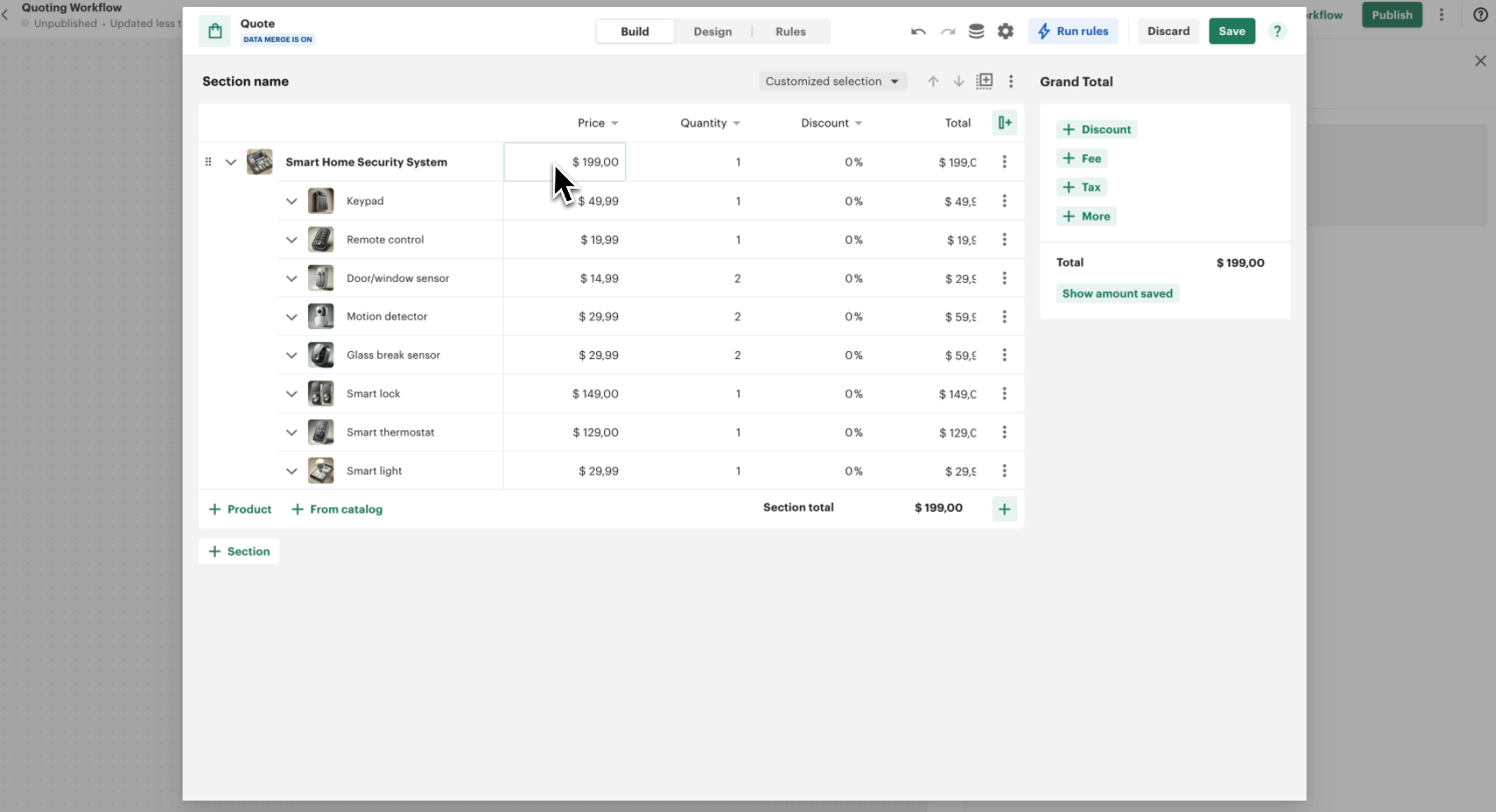
- Enter Military and First Responder Discount in the Quote Data field.
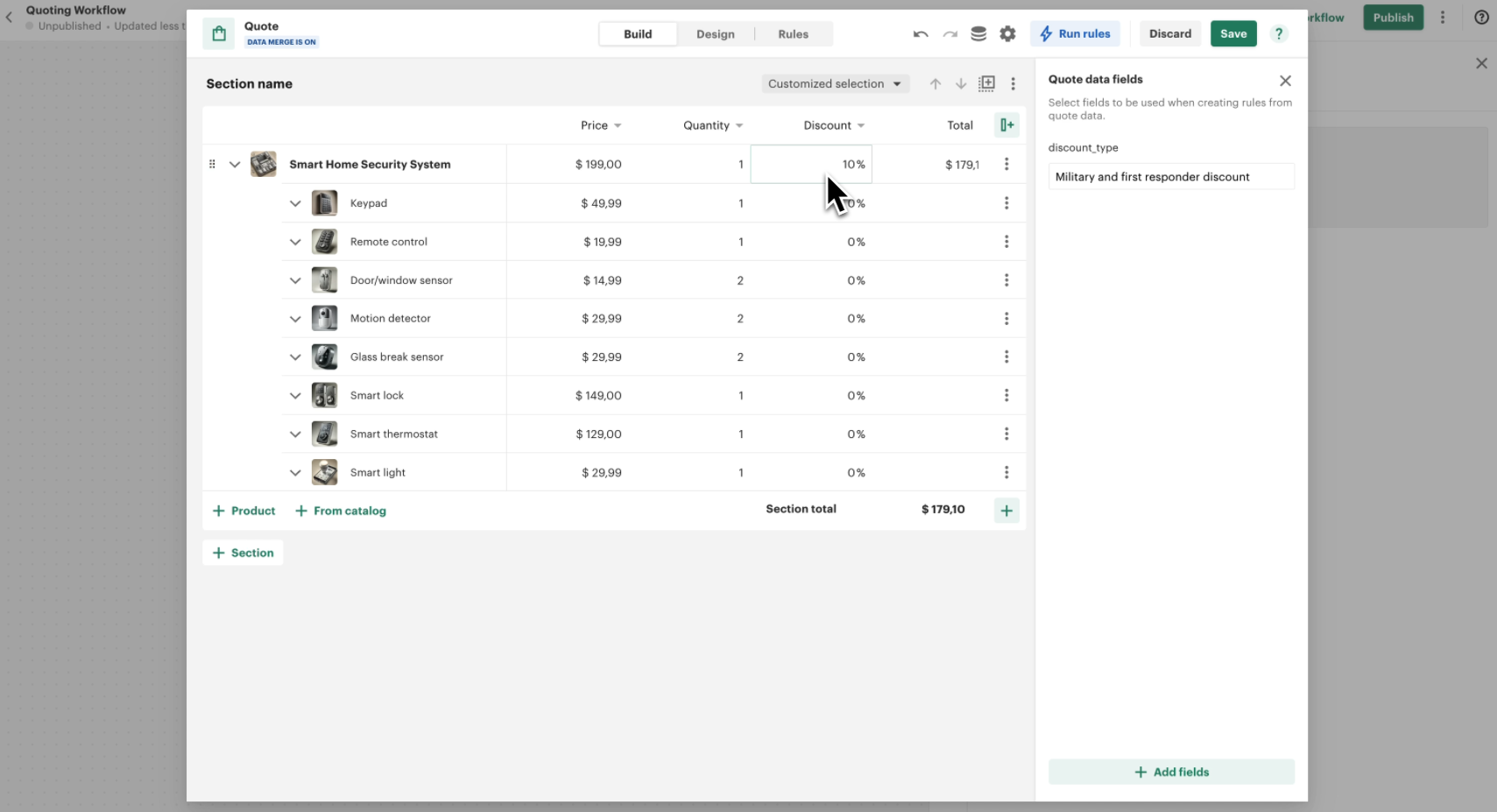
- Verify that the discount is applied correctly.
Step 5: Adding Remaining Discounts
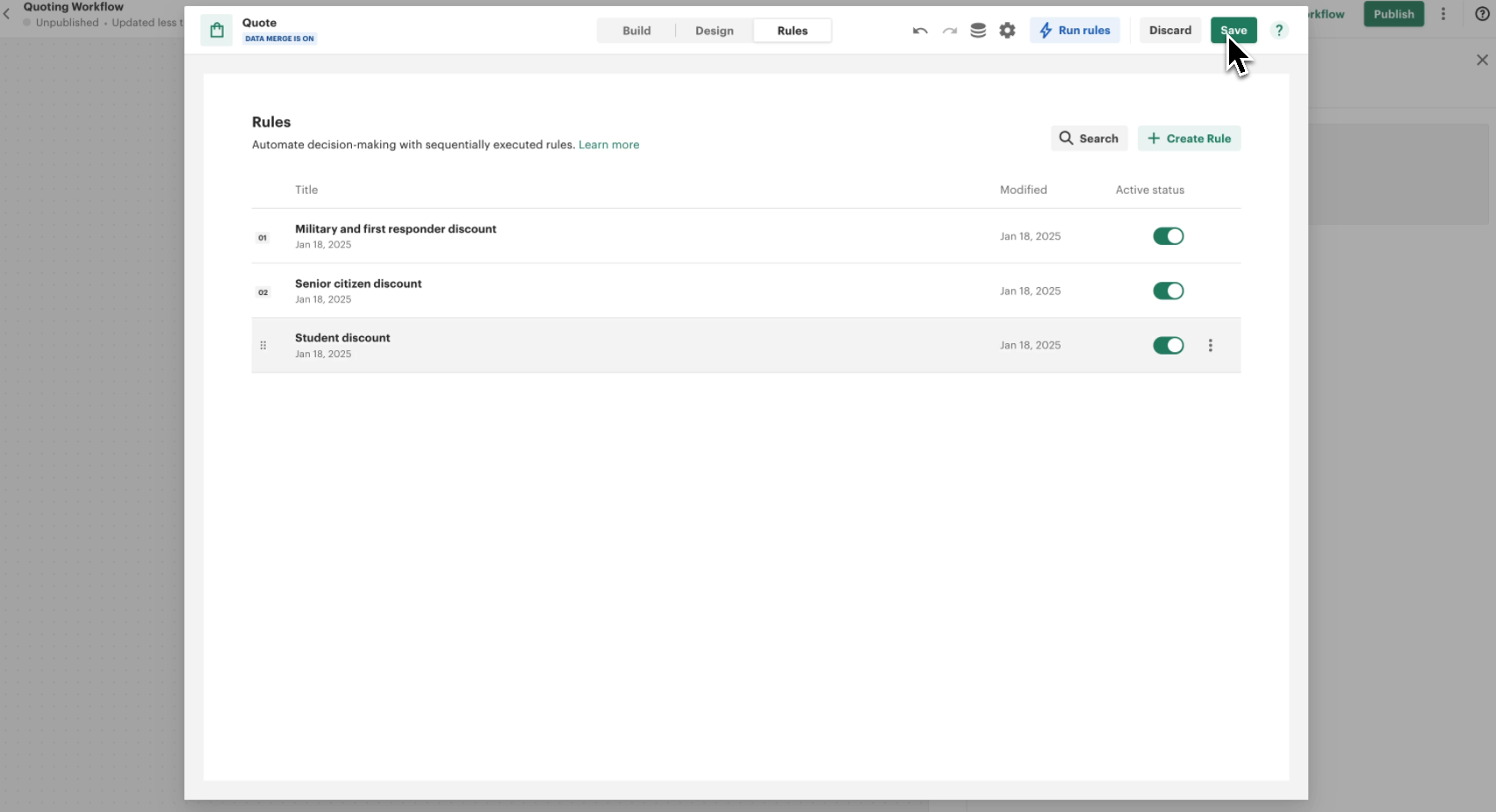
Now, duplicate the rule and modify it for other discounts:
- Senior Citizen Discount → 15%
- Student Discount → 5%
Step 6: Passing Discount Data from the Form to the Quote
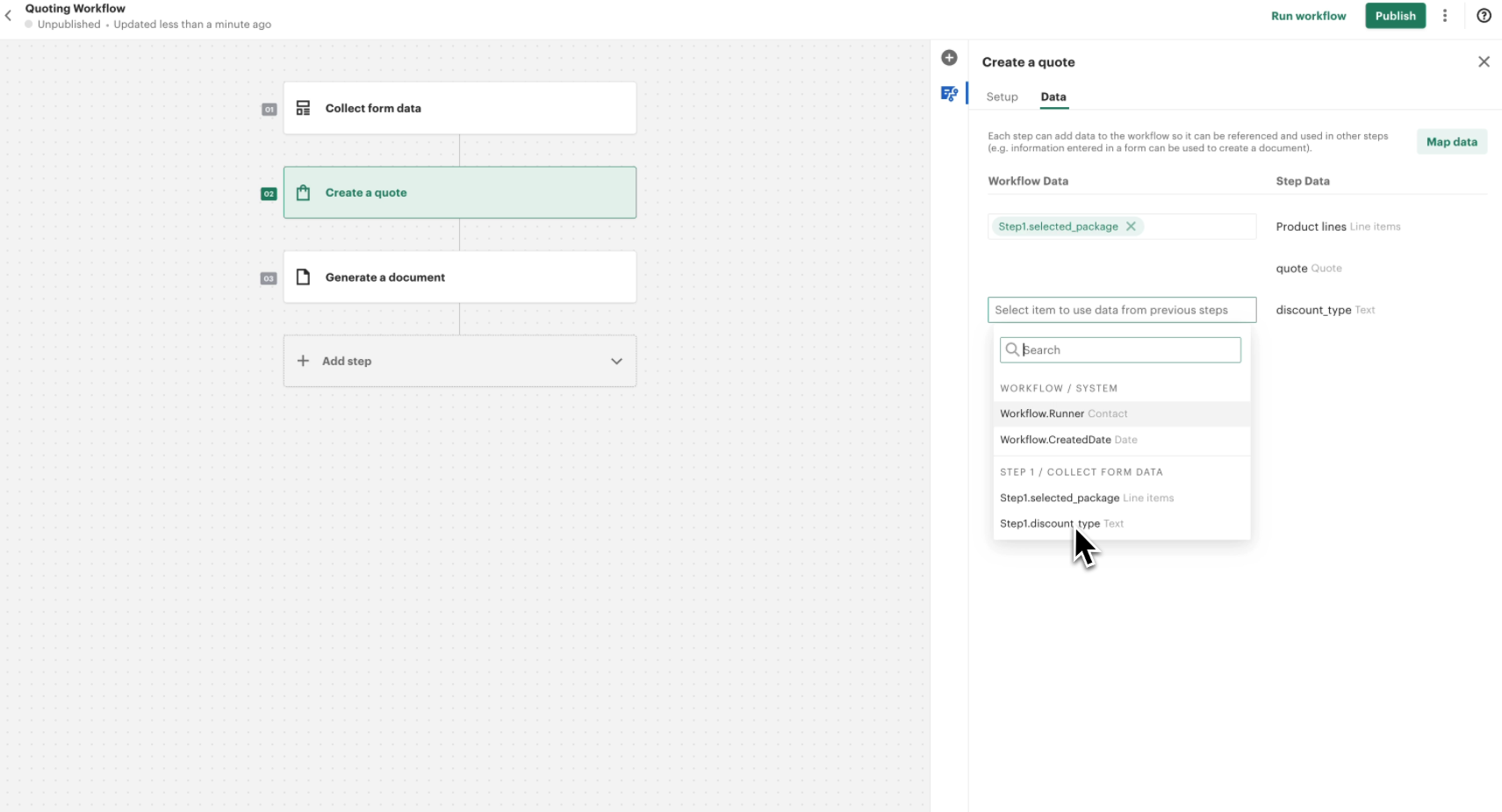
Finally, we will pass the discount selection from the form into the Quote.
- Open the Data tab of the Quote step.
- Find the Discount Type field.
- Map it to the output of the form step.
- Save the Quote.
Conclusion
With these discount rules in place, the system will automatically apply the correct discount based on the salesperson's selection. The next step in our guide is passing the Quote to the document.